Adding DelphiPlus Email
to Outlook Express
Note: this is ONLY for Outlook Express.
It does not work in MS Express and may or
may not work with other email clients.
|
Inbox |
|
POP3 |
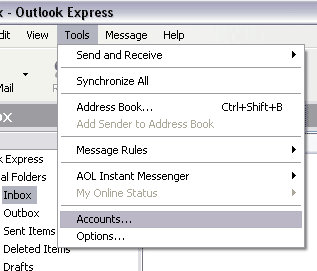
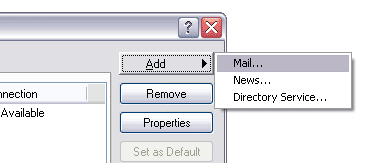
Open Outlook Express and under the Tools menu, choose Accounts. Select Add, then Mail.
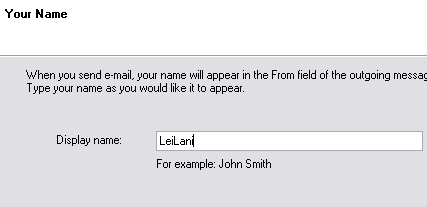
Type in the name you want to show when you send
an outgoing email, then press the Next key.
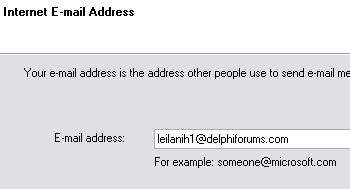
On the new screen, fill in your complete DelphiForums email address and press
the Next key.
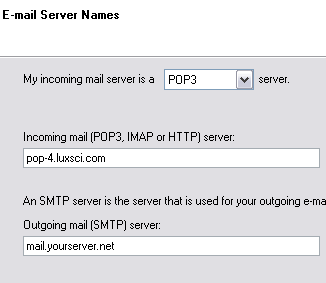 Here's
the screen that creates the problem. Choose POP3 for your incoming server,
and type or c&p this server name into the POP3 field:
Here's
the screen that creates the problem. Choose POP3 for your incoming server,
and type or c&p this server name into the POP3 field:
pop-4.luxsci.com
However, for the SMTP field, you must populate with the server name for your own ISP. Using the Lux Scientiae server name listed in their help section does NOT work for this email client. If you don't know what your ISP's email server is, you may need to contact them, although most of the time the information will be available in the help section of their web services page. Generally speaking, the name will be formatted as mail.yourserver.com or mail.yourserver.net - replacing the part that says 'yourserver' with the name of your ISP.
Once you've populated both fields, press the Next key.
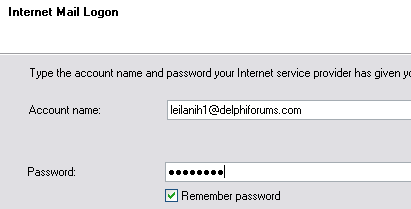
Just like when you log in on the web mail page, your account name is your COMPLETE email address. Be sure that you use the right password for your email. If you changed it after logging in, you should use the new password. If not, it will be the 8-character password you were assigned.
After filling in the blanks,
push the Next key.
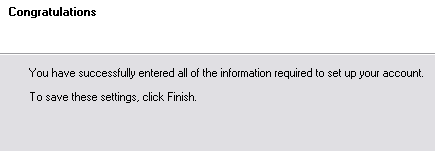
Wanna
know something scary? You're done. *grins* Push the Finish
key.