Email Forwarding
(Two methods)
|
Inbox |
|
Forwarding |
IMPORTANT NOTE TO LINUX USERS: All drop-downs are mouseover-based. If you are using Linux operating systems, you may need to access IE to get the mouseover aspect to work!
Option 1: Standard Forwarding
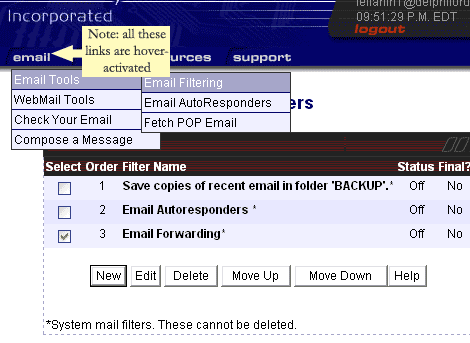
To forward your email to another address, go into the drop-down list for
email (all drop-downs are hover-activated) and choose Email Tools...
Email Filtering. Click on Email Forwarding and then push the
Edit button.
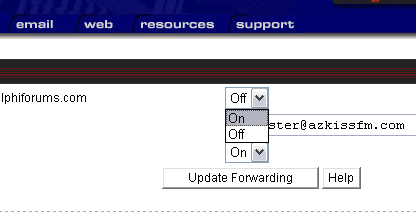
On this screen, choose forwarding ON and type in the email you want your mail forwarded to. You may also elect to keep a copy of all emails in your Delphi box, if you like. I'd recommend that you do until you're sure your forwards are going through.
Then click on the
Update Forwarding button. That's all it takes for most people.
Option 2: Using Filters to Forward
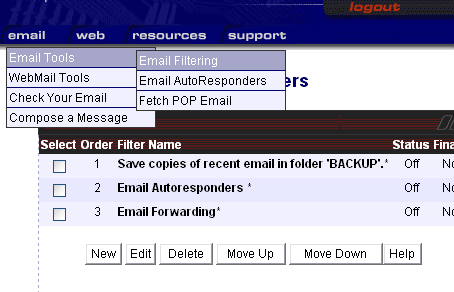
If standard forwarding doesn't work for you, or you want only certain emails to be forwarded, you might want to use the separate filters option. Open the filters dialogue area as above, but in this case, push the New button.
When the new window opens, you need first to choose a name for your filter. I'll give this one the name of 'Forwarding'.
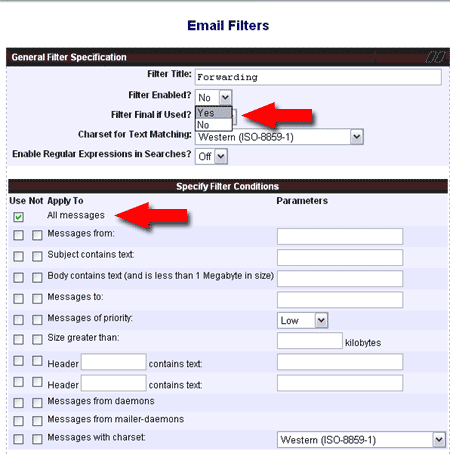
Select the option Filter Enabled? YES. Then click the column under Use to apply to all messages, or only to those messages fitting certain criteria, according to what you want forwarded.
Scroll down to the next field...
As shown below, click on the space to forward message to the email of your choice. Be sure to type in an email address or the system won't know where to send it and you could possibly lose mail!
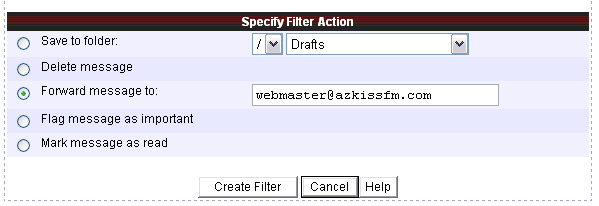
When you've finished that part, click on the Create Filter button, and you're done.