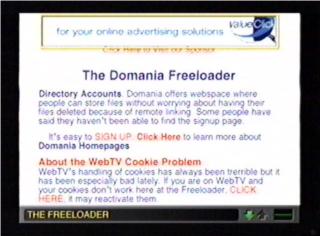
To move images and sound files to your Delphi web space from elsewhere on the web, you will need to use the Transloader or the Freeloader. I prefer the Freeloader, so I'll give instructions for that. The transloader works pretty much the same way, though, so learning to use one should help you learn to use the other.This is what the Freeloader page looks like:
If you scroll down a bit, you'll see spaces to fill in information to tell the Freeloader what you'd like to move and to where you'd like to move it.
~~~~~~~~~~~~~~~~~~~~~~~~~~~~~~~~~
The first space to fill in is for your web page URL (web address). This is an optional step, so you can leave this space blank if you wish. It's only so you can have a direct link to click on to make sure the file got to its destination, but this doesn't work quite right at Delphi. If you want to fill in this space anyway, here's what you type in:
http://people.delphiforums.com/yourmembername
Remember to change the part that says "yourmembername" to your Delphi *member* name, and not any nickname you might use. My Delphi member name is "thebean2", and if you press the "info" button on your keyboard you can see how the member name fits into the URL of the web page.
~~~~~~~~~~~~~~~~~~~~~~~~~~~~~~
The next space is for the URL of the file you wish to move to your web space. If you are an MSN TV (WebTV) user, this space should already be filled in with the URL of where you were immediately before going to the Freeloader page. This is a nice feature if you go to the Freeloader page directly from the URL of the file you'd like to move to your web space. (This feature only works with images, and not sound files. Computer users and those who wish to move sound files must fill this URL in for themselves.) The file I am moving in the demonstration picture is:
http://members.tripod.com/thebean1/shamrockflag.gif
You can practice by moving this file to your own web space if you'd like.
~~~~~~~~~~~~~~~~~~~~~~~~~~~~~~~~~
The next space on the Freeloader page is for the FTP server of the site you are moving the files to. The FTP server for Delphi is located at
ftp.delphiforums.com
so that is what you type into this space.
~~~~~~~~~~~~~~~~~~~~~~~~~~~~~~~~~
Next is the space to type in your Delphi member name. Once again, remember to use your Delphi *member* name (the one you use to log into Delphi) and not a nickname or it won't work.
~~~~~~~~~~~~~~~~~~~~~~~~~~~~~~~~~
Next you type your Delphi password.
~~~~~~~~~~~~~~~~~~~~~~~~~~~~~~~~~
The next space is for the directory in your web space that you want to move the file to. The name of the directory you need to type in here is:
web
~~~~~~~~~~~~~~~~~~~~~~~~~~~~~~~~~
Then you need to tell the Freeloader what you would like to name the file that you are moving. Be careful not to give the file the same name as another file already in your web space, or the new file will be automatically copied over the other one and your older file will be lost. In the example picture, I have decided to give the file the same name as it had in its original URL:
shamrockflag.gif
~~~~~~~~~~~~~~~~~~~~~~~~~~~~~~~~~
Okay, you've entered all the necessary information, so all you need to do now is click on one of the buttons below the filename space, and the Freeloader will move your file for you. If you get a message that the Freeloader is too busy, try clicking one of the other buttons instead.
~~~~~~~~~~~~~~~~~~~~~~~~~~~~~~~~~
When you have successfully clicked on one of the buttons, you will be taken to a new page. On this page you will see the FTP Dialogue box. In this box is all the stuff that the Delphi FTP server and the Freeloader were saying to each other. If you filled in all the information correctly on the previous page, the dialogue box should tell you that the file has been transfered and thank you for using Delphi. If things didn't go well, the dialogue box may help you figure out just what went wrong. Something could be wrong with Delphi's FTP server, but often the problem is as simple as mistyping your password or other information. If you just didn't spell something right, all you have to do is hit your back button and fix it. Everything you typed in each space should still be right there waiting for you.
~~~~~~~~~~~~~~~~~~~~~~~~~~~~~~~~~
If you filled in the first space on the previous Freeloader page, the one for your web site URL, there will be a link directly under the dialogue box to the file you just moved to your Delphi web space. Normally this link is a handy way to make sure your file has arrived safe and sound, but unfortunately Delphi has thrown the Freeloader an unexpected curve. Because we told the Freeloader to upload our file to our Delphi "web" directory, the Freeloader put "web" into the new URL of the file. If we click on the link it will say that Delphi couldn't find the requested page. So we must either type in the URL of the file and leave the "web/" part out, or click on the link, get the error message, then push the "go to" button on the keyboard, select "show last" and erase "web/" from the URL that way. Whatever's easier for you.
If you want to use an image file that you've moved to your Delphi web space as a signature in your Delphi posts, you will need to know HTML to do it. For instance, if I wanted to put the shamrock flag gif from the example above in the middle of my Delphi signature, I would do the HTML like this:
<P>
<center>
<img src="http://people.delphiforums.com/thebean2/shamrockflag.gif">
</center>The "<P>" will separate the sig from your message text, the "<center>" will center the image in the message area, the "<img src=" will make your image show if you get its URL right, and the "</center>" turns off the center command. When you go to post your image, you will need to change some things in the URL from this example. You will need to change my member name (thebean2) to yours, and the name of the image (shamrockflag.gif) to the name of the image you want in your sig.
For more lessons on HTML, a good place to check out is Draac.com.
Good luck!