The first thing you will need to do is go to this web site: Net2ftp.com
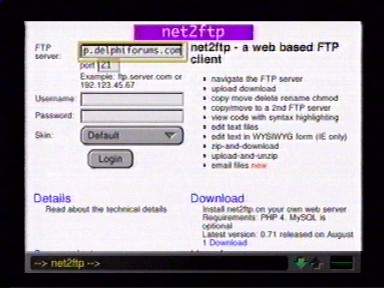 Once you are at the Net2ftp site, you will see a space to fill in your log-in information for Delphi. In the first space, you will need to put the name of Delphi's FTP server. Delphi's FTP server is located at
ftp.delphiforums.com so that's what you type in that space. |
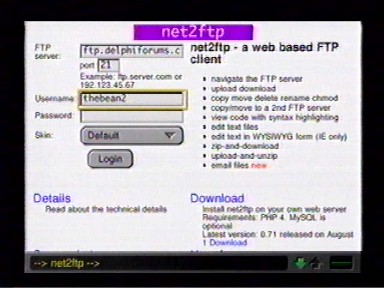 The next space is for your Delphi member name. Remember to use your Delphi *member* name (the one you log into Delphi with) and not any nickname you might use. My member name is
thebean2. |
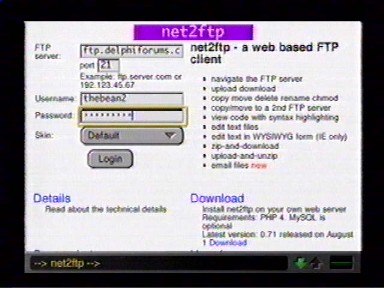 The next space is where you type in your Delphi password.
|
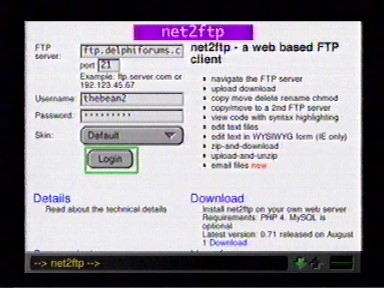 Next click on the "login" button.
|
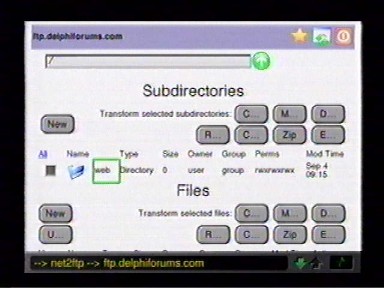 If you have typed everything correctly, you will be taken to a page that says "Subdirectories" at the top. The name of the subdirectory you need is called "web", so just click on the word "web" to go there.
|
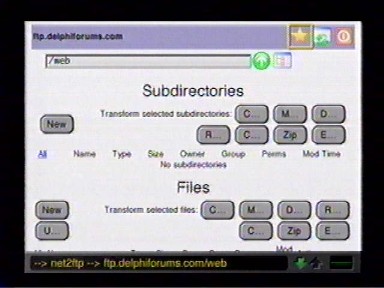 Once the page with the web subdirectory loads, you will see the area where you manage your web space. You can delete unwanted files from here or edit HTML files. Unfortunately you can not upload new files here (the upload feature doesn't seem to work properly with WebTV, and only uploads a tiny bit of the picture).
|
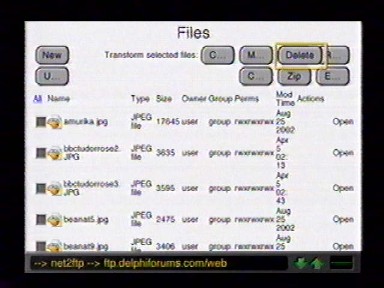 Now scroll down and you will see a list of all the files that are in your "web" directory.
|
|
If you want to edit an HTML file, find the file on the list and click on the word "edit" across from it on the right.
index.html in the list of files and click on the word "edit" directly across from it. |
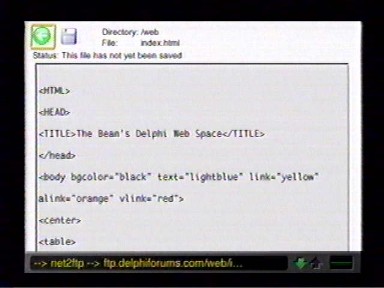 You will be taken to a page with a big box that you can type in. In the box should be the text that Delphi has put on your web page. You need to erase what Delphi has put there and use your own HTML to build your page the way you want it. If you don't know any HTML yet, here is a basic example to get you started:
<HTML> The "HTML" at the top identifies your web page as an HTML document. The "HEAD" and "TITLE" commands will make the text, "My Web Page", show up as the yellow web page title on the bottom bar of your MSN TV, and the "/HEAD" and "/TITLE" signal that that's the end of the yellow title. The "BODY" command sets up the colors that will appear on your page, "BGCOLOR" is for the page's background color, "TEXT" is for the main text of the page, "LINK" is for the color of links before you click on them, "ALINK" is for links you just clicked on but before you are taken to that page, and "VLINK" is for links to pages where you have already been. "CENTER" means you want something to be in the middle of the page, rather than starting from the left. The "H2" command means that you want the text "My Web Page" to be a heading which is set apart from other elements on the web page and "/H2" means that's the end of the heading. Adjusting the number next to the "H" will change the size of the heading type (the lower the number, the bigger the type). "/CENTER" means you don't want the type to be centered any more. The "P" puts a space in between the heading and the text below. It can also be used in between paragraphs of text to set them apart. "Welcome to my web page!" is where the main text of your web page would go. "/BODY" ends the color commands for your web page, and "/HTML" signals the end of the HTML document. To learn more HTML, I would recommend a visit to Draac.com. |
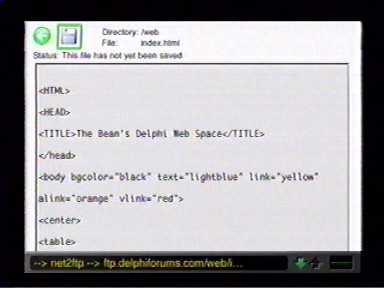 Don't forget to click on the "save" button when you're all done editing your page! It's that little blue square up top. (I think it's supposed to look like a computer disk.)
|
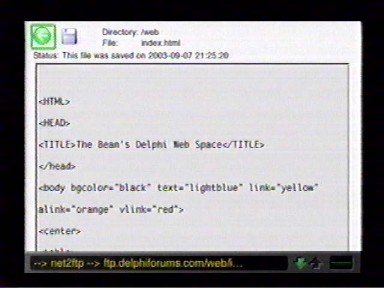 Then if you want to go back to your "web" directory page, click on the green arrow in the top left corner next to the save button.
|
|
Now that your web page is edited and saved, you need to know its web address (URL) so you can look at it and make sure it came out the way you wanted. The URL of your "index.html" page is:
http://people.delphiforums.com/yourmembername And the URL of any other web page you make would be: http://people.delphiforums.com/yourmembername/filename.html Just change the part of the URL that says "yourmembername" to your actual Delphi member name, and the part that says "filename.html" to whatever the file name for that page is. (The file name for this page is "ftp.html".) |
Deleting Files |
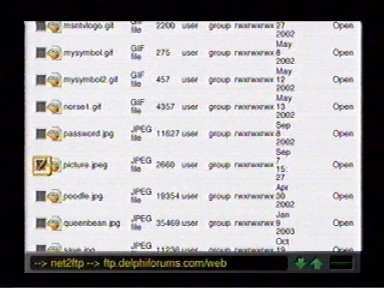 To delete files from your "web" directory, first check the box next to the file you want to delete.
|
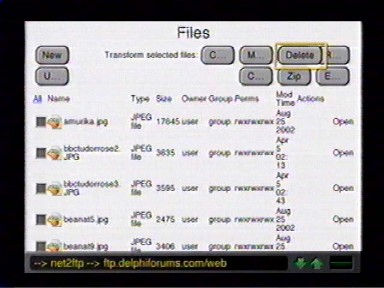 Then click on the "delete" button at the top of the list of files.
|
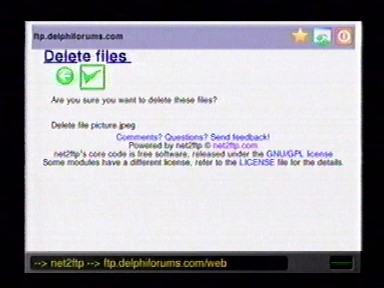 Net2ftp will ask you if you are sure you want to delete these files. Click on the green check mark if you are sure.
|
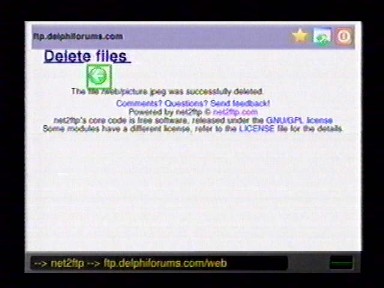 After the file has been deleted, you can click on the green arrow if you want to go back to your "web" directory page.
|
Renaming Files |
|
To rename files, first check the box next to the file you'd like to rename.
|
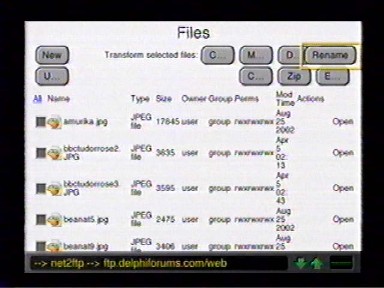 Then click on the "rename" button at the top of the list of files.
|
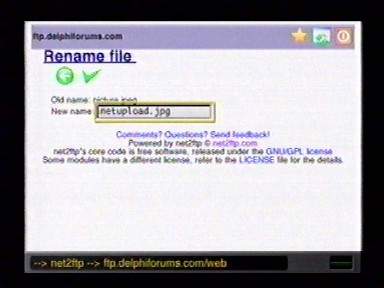 Type the new name you would like to give the file into the box, then either click on the green check mark above the box or hit "return" on your keyboard.
|
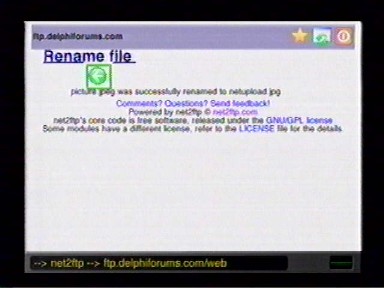 After the file has been renamed, you can click on the green arrow if you want to go back to your "web" directory page.
|
|
Now you should be all set!
Good luck! |
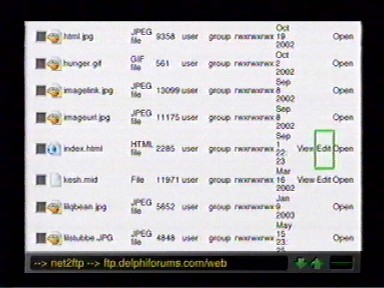 Delphi has already put a web page in your "web" directory for you. It's just there to say that you haven't built your web page yet so it won't just be a blank space. You need to edit your Delphi web page if you want to replace the one that Delphi has put there for you with something of your own design. Your Delphi web page is called "index.html", so to edit it, find